
Review a test, approve a run, and get the result — without leaving your Slack thread.
A test fails. Someone pastes a screenshot into Slack. A developer asks which script ran. A QA engineer asks whether the failure is new. Another person opens the app to find the trace. Ten messages later, the test code, the execution history, and the discussion are still in three places.
QualityMax now brings those pieces into the same conversation. Connect a project channel, ask about its tests, and turn the next step into an approved action. Your team can inspect the script and get the run result where the discussion started.
From question to result, in one thread
Start with a test your team already knows. In an approved channel, mention QualityMax:
@QualityMax list these scripts
Choose a script from the authorized results. For example, if its ID is 42, ask:
Review the source of script #42 for flaky waits.
QualityMax retrieves the stored source so the conversation can focus on the actual check. Ask what it asserts, where it might be fragile, or how its latest execution turned out. You do not need to copy the test into Slack.
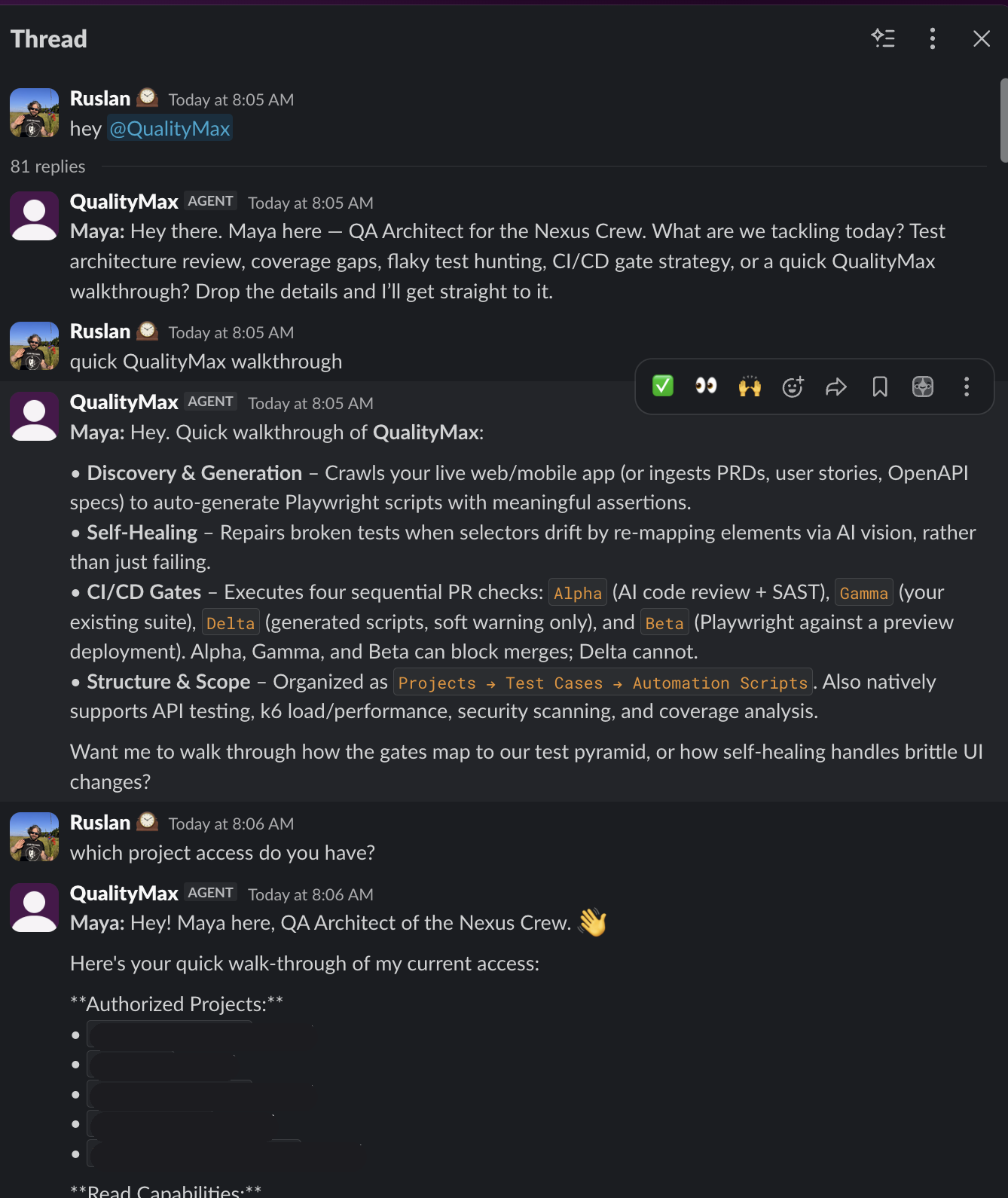
When you are ready to check the behavior, request the run:
run script 42
QualityMax presents a proposal showing exactly which script and version will run. Review it, then select Approve. For an eligible pending run addressed to you, an immediate yes in the same thread can also approve it.
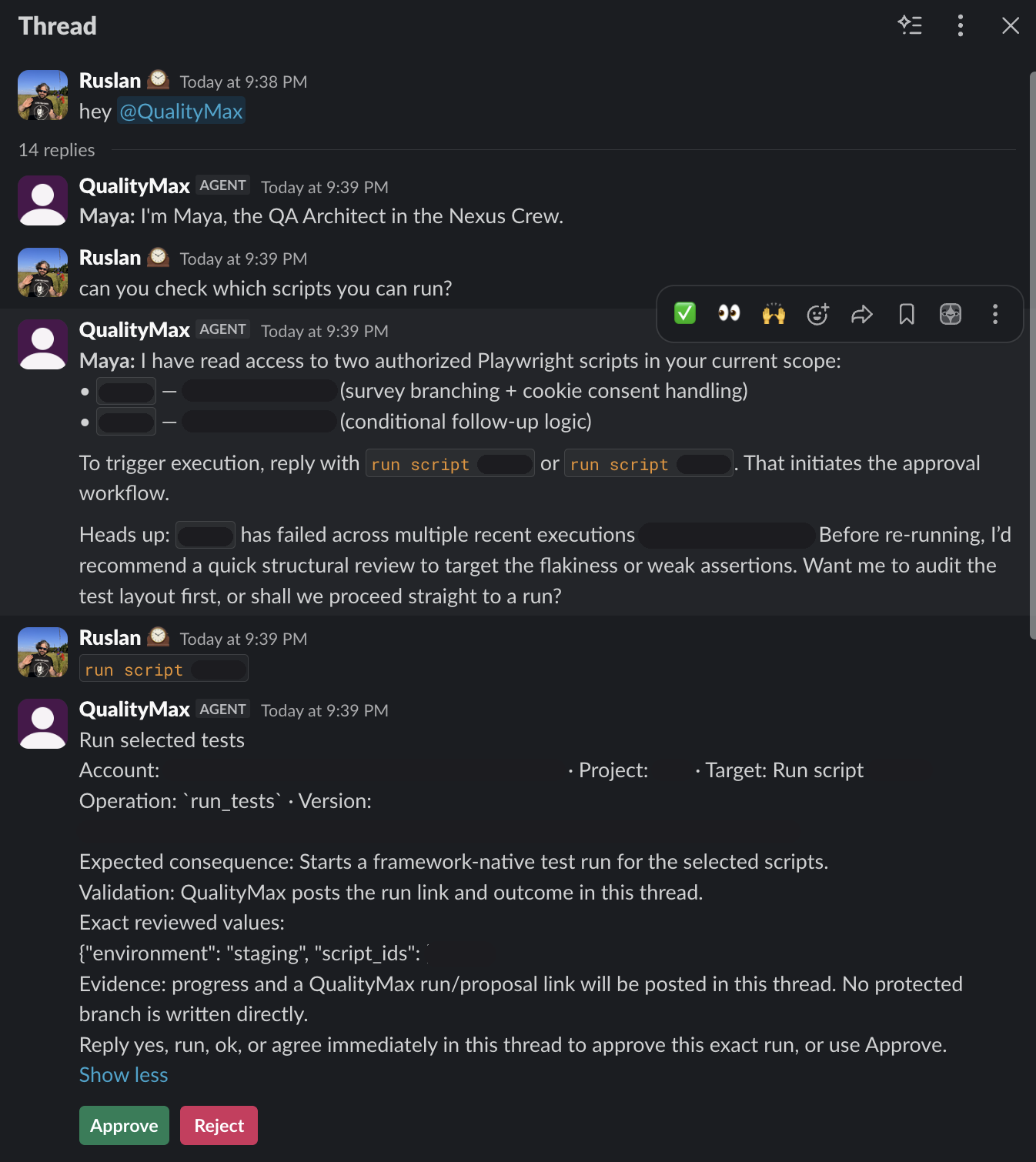
The result returns to the requesting thread with pass/fail counts and an execution link. Open the execution for the available artifacts, or keep discussing the outcome with your team.
We verified this path internally with a stored Playwright script: an approved Slack run produced a terminal receipt in the original thread. The screenshots above show the conversation and proposal stages, not the completed result.
Three ways to use it today
- Review a test together. Inspect stored source, test steps, and available execution evidence. Ask Maya about coverage, switch to Vex for a security perspective, or bring in Pulse for performance questions.
- Run the check you are discussing. Request an existing script or a test case’s scripts, review the selection, and approve the run. Automatic notifications can stay off if your team prefers on-demand checks.
- Investigate a failure. When notifications are enabled, incident threads bring the run identity, counts, and evidence links into the channel. Discuss the failure there and request a repair for review when healing is permitted.
Your team stays in control
An administrator chooses which project records the channel can read and which actions it can propose. Each participating user links their QualityMax account. Access is checked again before an approved action executes; a specialist switch never grants extra permissions.
Runs require approval of the exact selection. Script edits and healing have their own review controls — a conversational yes does not silently rewrite a test.
Self-healing belongs in the failed-run incident thread. Ask heal this script there, not in a general project chat. Review the proposed change and its validation evidence, and keep the original failure visible.
Slack works in approved project channels, not direct messages. Execution also requires a supported, configured runner; being able to read a script does not mean Slack can run it. The Slack guide covers supported frameworks, permissions, commands, and troubleshooting.
Start with one script
Open Settings → Integrations → Slack. Connect the workspace, invite the bot, and approve one project channel. Link the participating accounts, enable Data access for scripts, and enable Action access → Run tests.
Then try the loop with one familiar test: inspect it, request a run, approve the proposal, and read the result. Add more actions when the team needs them.
Bring your next test conversation into Slack
Follow the setup guide to connect your first project channel.
Connect QualityMax to Slack →